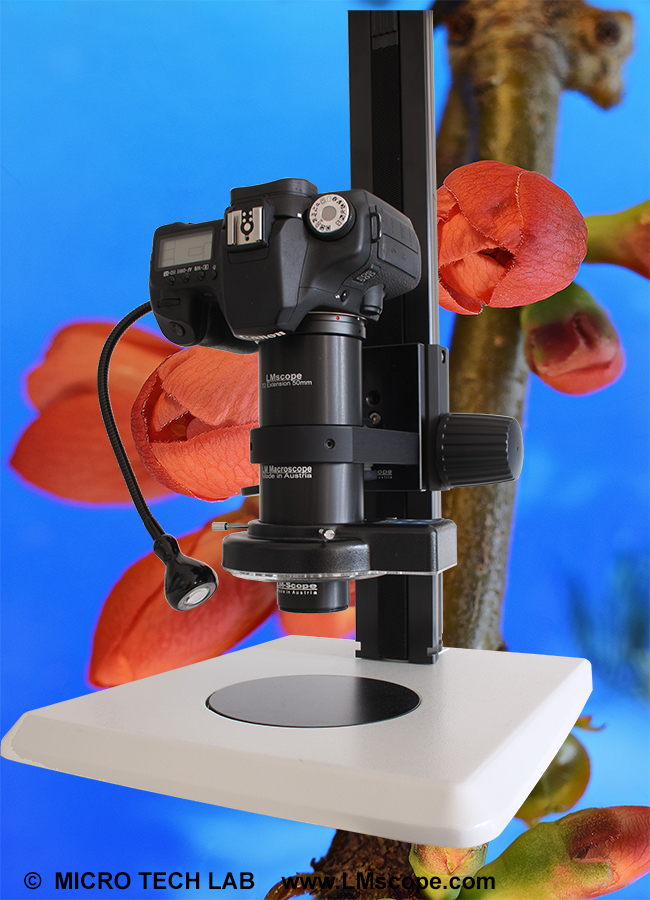
Microscopy workstation with Canon EOS 350D


If you want to capture images with highest image quality connect your microscope system or macroscope system with a USB cable to your computer. The images will be displayed on the high-resolution computer screen with the full resolution of a digital reflex camera immediately after pressing the shutter release. By doing so you can capture high-quality microscope images and macroscope images in just some seconds. If your image does not fulfil your requirements, e.g., due to wrong illumination, focus level or image frame, just press the shutter release again. Since you will be able to immediately review the image quality you can save a lot of time you would otherwise spent on retaking entire image sequences. With the usual technique the image data is stored on the storage medium of your digital camera, such as, e.g., CF, MMC Card  etc. Usually it is difficult to judge the image quality on the small built-in screen. Using an external video monitor does not solve this problem either. By sticking to the NTSC or PAL video standard camera manufacturers are forced to reduce the image quality considerably. Conversion of the original digital image information to an analogous video signal also leads to a considerable reduction in image quality. Due to simultaneous image transfer via the USB interface the image data is no longer stored on the memory card, i.e. that the memory card does not even need to be removed at all. Accordingly, the number of pictures you can store only depends on the size of your computer hard disk.

The Canon EOS 350D comes with all necessary devices:


If you want to connect your digital camera to your computer set the connection on “Connect to PC” in the Setup menu.


The ZoomBrowserEX included in the delivery is a practical image viewer and complements the EOS 350 by adding a lot of functions. First connect your digital camera to the USB cable and to the computer. If the camera is switched on a pop-up window with the following message will be displayed:


Choose the long-distance shot window and click on “Remote Shooting function”.


Now select the folder where you wish to store the images.


Now the capture window is displayed. After pressing the shutter release the picture is displayed in the ZoomBrowserEX.
To avoid fuzziness we recommend to use the remote-control release.


Software version tested by us:


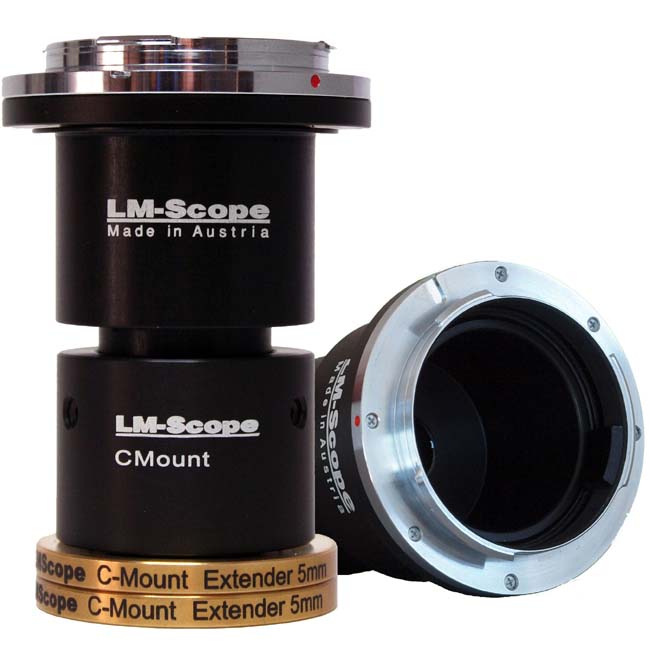
New LM Digital-Adapter for:
Canon EOS 1Ds Mark III / Canon EOS 450D / Digital Rebel XSi / Canon EOS 1D Mark III / Canon EOS 1Ds Mark II / Canon EOS 40D / Canon EOS 5D / Canon EOS 400D / Digital Rebel XTi / Canon EOS 30D / Canon EOS 1D Mark II / Canon PowerShot S80 / Canon EOS 20D / Canon EOS 20Da / Canon EOS 350D / Digital Rebel XT / Canon EOS 1D Mark II N / Canon EOS 10D / Canon EOS 300D / Digital Rebel / Canon PowerShot G9 / Canon PowerShot A640 / Canon PowerShot G7 / Canon PowerShot S5 IS / Canon PowerShot A630 / Canon PowerShot S70 / Canon PowerShot A560 / Canon PowerShot A550 / Canon PowerShot A570 IS / Canon PowerShot A710IS / Canon PowerShot A620 / Canon PowerShot G6 / Canon PowerShot A540 / Canon PowerShot A700 / Canon PowerShot S3 IS / Canon PowerShot A610 / Canon PowerShot S2 IS / Canon PowerShot S60 / Canon PowerShot A95 / Canon PowerShot A90 / Canon PowerShot G5 / Canon PowerShot G3 / Canon PowerShot A520 / Canon PowerShot A85 / Canon PowerShot G2 / Canon PowerShot A80 / Canon PowerShot G1 / Canon PowerShot A70 / Canon PowerShot A75 / Canon PowerShot A510 / Canon HR10 / Canon PowerShot A40 / Canon PowerShot A60 / Canon XL H1 / Canon PowerShot A30 /


Which digital camera functions best on a microscope?


High-end intermediate optics for the connection of digital camera and microscope


Turn your digital reflex camera into a microscope
Digital SLR cameras can now be converted into a microscope simply by screwing the LM DSLR macro lens  onto the existing lens.
LM DSLR macro lens 40mm / 80mm 


Tips and tricks for Digicams / Camcorders
Demo pictures taken with Digital Cameras and Camcorders


© 1999-2008 MICRO TECH LAB. All rights reserved

How to order
Contact
Home
 Newsletter